Updated 6/9/2007 - Contact me!
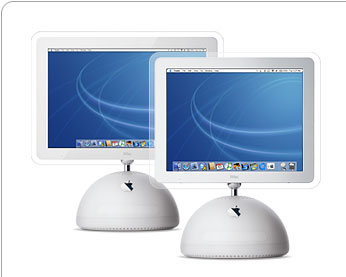
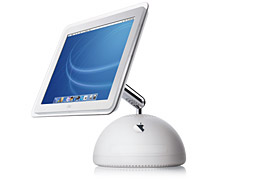 Oh dear, I seem to be getting a bit out of touch. But Mr Ives' little baby still looks pretty damn fine. It's a 15 inch flat screen 800 MHz G4 iMac bought in 2002. It only has a 60Gb hard drive! You get iPods now with bigger drives. I'm now running OSX 10.4.11 (Tiger) with iLife 08. I have 512Mb RAM, wireless broadband connection (Netgear DG824m, Pipex). I also use a 3rd gen iPod and a Palm Tungsten T5 personal digital assistant (PDA).
 On your keyboard you will probably have a few extra keys. There may be volume up/down and mute keys, and possibly an eject key for your drive. There are some funny keys at the bottom: next to the Control button is a button with 2 symbols on, one of which is a bent line like a ramp. This is called the Option key. Next to that is a button with a curly symbol, called the Command key.
The mouse is your friend! The Mac is great for drag and drop - you can almost always do things by dragging them around and dropping them in different places. For those not used to a 1 button mouse, you will be relieved to hear that clicking the mouse with the Control button pressed down has a similar effect, of bringing up a menu of common options (the contextual menu). And by the way, if the mouse hits the edge of the desk while you're holding it down, squeeze the sides with your fingers and you'll be able to pick it up and move it without losing the click!
The dock is the key to getting around fast, so do adapt it to suit you. Apart from clicking on dock icons to open or switch between applications, clicking and holding the mouse down (or holding Ctrl down) on an icon can offer different options, depending on the application. Plus, some icons give you real time information eg Mail. You can drag and drop stuff on to a dock icon to open it, eg:
To change how the dock behaves, click on the Apple symbol in the top left corner of the screen (this is also how you log out and shut down, and get at your System preferences).
Other nifty things:
The Finder is the application for finding files, folders and applications. When you first log on, this is where you start, and you can get there by clicking anywhere on the Desktop, or by clicking on the lefthand most icon (the Mac face) in the Dock.
Bring up a Finder window by choosing New Finder Window from the File menu, or by clicking on the Finder icon in the dock. On the left hand side you see you'll see a list of any drives attached or CD/DVD inserted, and a selection of commonly used folders. Click on one to open it in the main window. You can choose to see the contents as icons or as a list or as a hierarchical branching network, just click on one of the buttons above the window. Click on a folder or file, and you can get info eg file size by clicking on the cogwheel button above the window.
You can drag folders into or out of your favourite list on the left, or change their position by dragging them up or down.
Maximize a window by clicking on the green button. Minimize it by clicking the yellow button - it will collapse down into the dock. Close it with the red button. Move a window by dragging it by its metal border. Resize it by dragging its corners.
Some image files do not have a preview in the finder. You can get previews by setting the options for the folder the files are in:
This doesn't always work very well; see Pinki and CocothumbX, below.
Neat tricks:
Expose is a way of quickly seeing what windows are open. There are different ways of triggering it, which you can set in System Preferences in your Apple menu, eg by dragging the mouse pointer into a corner of the screen. When it's triggered, all open windows are revealed and labelled, just click on the one you want, or trigger Expose again to go back to where you were. You can combine drag and drop with Expose (using F9) to drag something between different windows - similarly, drag something and press F11 to drop it on to your desktop.
There are 2 types of CDs you can record on to, CD-R and CD-RW. The first kind you can only use once, the second you burn as many times as you like. But there are important differences from floppies! Let's start with the easy way. If you are wanting to burn a music CD, put a blank CD in the drive, when you are prompted to format it choose itunes audio and type a name. Then go into iTunes (see below). For saving files, stick a blank CD (of either type) into your drive. You will be asked to give it a title and to format it. Choose the data format. The CD will appear as an icon on the desktop, you can now drag or paste files on to it. When you have finished, select the CD icon, choose burn CD from the Finder menu, and there you go.
There's a more sophisticated way of burning CDs, which is to use Disk Utility. This allows you to save stuff on to the CD, then add more later, until the disk is full. But you still can't erase particular files, you have to erase the whole thing. Open Disk Utility, choose New Image. Choose a size that is big enough to hold all the files you want to save (you need about 10Mb extra for the burn process). In the options you can choose "Sparse", which means that the end result will only be as big as what it contains, not the maximum size you selected.
This creates a .dmg, or Disk Image, file. Basically, it acts as a virtual drive, and you'll see a little hard drive icon appear ("mount") on your desktop, as if you had just connected an external drive. You can then copy files over to this drive by dragging them in. When you're finished, eject the drive by dragging to the trash. Choose burn image from the Disk Utility menu, select the .dmg file you were using. Insert a blank disk when prompted, if you haven't already. Clicking on the down arrow at the top gives you some extra options, including the all important Erase first, and Leave disk appendable. What the latter means is that with this option ticked, you will be able to burn extra disk images on to the same disk at a later date, up to the total capacity of the disk (which isn't usually as much as it says on the front...). Just create a new disk image, drag your files over in the same way, click on burn and when prompted for a blank disk, put the old one in. NB this kind of disk is not recognized by PCs. This is a little complicated, and Roxio Toast ($99) makes it a lot faster and easier. Firestarter (free) also makes it easier to erase RW disks and back up folders, also claims to overburn discs ie put more on them than officially possible - but still beta, so may not be totally reliable. LiquidCD (free) burns CDs, DVDs incl Video_TS.
You can trash the old disk image files afterwards if you want, or else another advantage of this method is that in the future, if you want to add some new files to your disk, you just double click on the disk image file to mount the virtual drive on your desktop, drag in your new files, then burn the disk again (if it's a CD-RW).
If you ever have a cd-rw that cannot be erased, try ejecting the CD, then re-inserting it. After insertion DO NOT open it or click on any of the icons. Go directly to Disk Utility and try erasing it again (the problem is usually that the Finder thinks the disk is in use). You may want to try unmounting all but the first session burned to that CD in the Finder, then seeing if Disk Utility will erase it.
Pathfinder (see below) allows you more options to customize the appearance of windows incl transparency, gives better previews, gives file paths. allows you to change the Finder font: Verdana is better than the usual Lucida grande, Osaka is similar but not as wide. Turn off smoothing below 9-12pt, and make smoothing strong. Safari lets you set a minimum font size.
Mouse Locator (free) is a utility that highlights your mouse position when there hasn't been any movement for a specified number of seconds.
Pointnsee (free) gives you a window with a magnified view of wherever your mouse pointer is.
In some applications but not others, you get a menu of Services under the main application name. There are a couple of useful things here, mostly do with taking stuff from this application and moving it to another. So, depending on what you have selected at the time, you may be able to copy it to a new Mail message, or to a new Text Edit document, etc. This menu can get pretty busy if you have lots of utilities, so try Services Scrubber (free) to customize.
A wide variety of widgets are available. Dashboard Kickstart launches dashboard in background so you don’t have to wait the first time you want to use it (free). Dashquit (free) allows you to quit the Dashboard completely and save memory.
If you can't get on with Dashboard, look at Konfabulator, below.
Advantages over Internet Explorer - you can have multiple pages open in tabs, there is a google search box at the top right, there is a snapback feature where you can jump back to your starting page, you can block pop up windows.
Firefox is a great alternative browser, with different skins, and a stack of extensions. Try:
Mailappetizer runs in the background and pops up a window when you get new mail with a preview! (free)
You can attach your business card to your emails. Export your business card entry from Address Book. Then drag it onto a signature in the Signature pane of Mail's preferences, and your vCard goes out with every signed email.
You can send texts via your bluetooth phone from Address Book - right-click on the mobile number (after bluetooth setup for your phone, of course).
Hawkwings is THE site for everything Mail related.
SyncTogether syncs Address Book, iCal, Mail (and more) data between multiple Macs (Tiger, $49).
Minimail ($9) allows you to shrink down the mail window to a much smaller version.
You may want to print this page! First rule: don't pull the plug, it really messes things up. If an application freezes, first check your keyboard and mouse haven't become disconnected. Otherwise, or if you get the spinning beach ball of death, then try:
For minor problems, eg applications refusing to obey you or randomly quitting, try repairing permissions. Open Disk Utility in the Utilities folder of your Applications. Select your hard disk, then click on repair permissions.
For major problems, or if that doesn't solve the problem, repair the disk. To do this you need to boot your Mac from the OS X installation disk by restarting while holding down command and C. You will be able to open Disk Utility and then presented with an option of repairing the disk. Restart afterwards. To boot from another OSX installation on another drive, restart while holding down Option. These kind of start up manoeuvres need a wired keyboard and mouse.
If applications keep crashing, reinstall the application again. If it came with an installer, there is usually an Uninstall option when you run the Installer again. Otherwise just drag the application to the trash and get a new copy.
If your clock keeps resetting itself, zap the PRAM: restart holding down command-option-p-r all at the same time, hold down until you've heard 3 chimes, then release and allow to start normally. If that doesn't work, you may need to replace the PRAM backup battery.
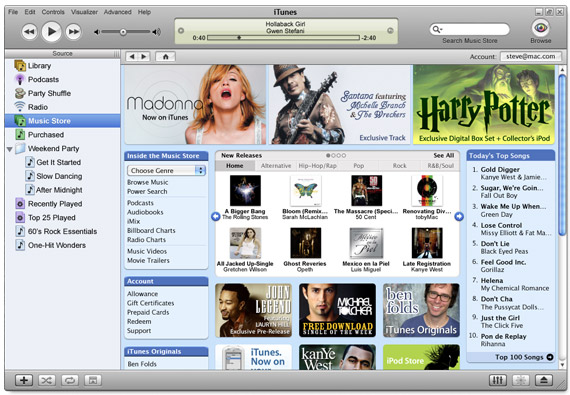
Great program, especially if you have an iPod... Rating your tracks is a bit obsessive but does help you make smart playlists. Have a look at Smartplaylists.com for examples (some REALLY obsessive, for sure). For example:
iTunes tips:
You can also join tracks as you rip them from CD, good for live concerts or classical pieces which would otherwise have a split second pause between tracks. Go to Advanced menu, Join tracks. If you want to keep the markers, you can use Audiobinder to add chapter marks to your track, the same way some podcasts have chapters. To join tracks together you have already ripped, you need to use one of Doug's Applescripts (see below).
You can get different visualizers for iTunes eg Whitecap (needs graphics acceleration).
To burn a music CD, check your Preferences, where you can choose the format (choose AIFF if you want to play the CD on a regular player: some players will play CD-RWs but otherwise it will have to be a CD-ROM) and certain other "burn" options eg overlap tracks or leave silent pause. Then create a playlist with the songs you want, and click the burn icon. If your playlist is longer than the space available, you will get a warning and iTunes will offer to record over more than one CD.
If you want to share your library between users on the same machine, there are 2 ways. The official way is to turn on Fast User Switching in System prefences (accounts), then enable music sharing in iTunes in both users, have both users logged in with iTunes running at the same time. The other user's music will appear as a separate source on the left. I prefer to move your iTunes Music folder over to the Shared folder instead of your home folder, and in Preferences tell iTunes where to find it. Put the iTunes Library data file in there too, then put an alias to it in your personal iTunes folder (in your home Music folder). That way, everyone sees the same playlists, and any music added to the library is available without everyone being logged in at the same time. The only downside is that this does appear to confuse iPhoto however when you try to use your music library for slide shows.
For tracks that have no album information, Cover View doesn't look nice. To get around this, fill in the album info with " " (single space, no quote marks), or a full stop. That groups them all together. Then exclude them from view altogether with a smart playlist.
To delete a song while in Playlist view, use option-delete otherwise you're just deleting it from that playlist.
Add-ons:
To play music from iTunes wirelessly on your hifi, you can use Airport Express or Roku Soundbridge (which has a readout). NetTunes ($20) lets you control iTunes on one Mac from another, eg a Mac mini running as a music server.
Rockstar is a $9 Name that Tune game using your iTunes library. TuneQuiz and Counterpoint are free versions
MyTunesRSS (free) allows you to access your music and videos from your iTunes library over a local network or even the internet.
Podcasts are radio shows that can be downloaded for listening to at your convenience, as opposed to ones that you can listen to on the internet but only while you're connected, and that you can subscribe to with the right software eg iTunes so that you automatically get new shows when they come out. Some are enhanced with chapter marks, images and links. See the Chapter menu when you're listening. On your iPod, chapters appear as marks in the track bar. iTunes can remember where you were in the podcast (or any other track) so you can pause midway through, listen to something else, then come back to the same point - in the Info box, check Make Bookmarkable. iTunes lets you search and subscribe to podcasts, but there are some other applications you may want to look at that have more features eg iPodder, iPodderX.
To find more music, try

My lovely old 3rd generation iPod, black and white screen, syncs via firewire. New ones will let you hold photos and videos, connect an FM remote, playback via TV. But apart from being gorgeous and playing music, it can also hold all your addressbook and iCal appointments/events. You can also use it as a hard drive eg for back up, and with the Belkin card reader, for storing your digital photos (although it's cheaper to buy an extra SD card for your camera...). The earphones that come with it are pretty good, but you can get better sound with higher end headphones eg Sony MDRED71/81. You can also get dictaphone, laser pointer, running shoe attachments. Some people have installed Linux operating software on it, allowing you to run other software.
You can store text notes on your iPod. PodNotes X makes this easier by automatically splitting big documents up. A good place to store lyrics (see below). You can get city guides as well. If you don't mind doing a little UNIX, you can even put Wikipedia pages on it.
You can get iTunes to work with non-iPod MP3 players using other apps, although not sure why you would want a non-iPod... Maybe your phone plays MP3s? iTunemywalkman is a set of scripts that let you copy playlists etc, but best is Synctunes which handles podcasts and playlists separately (free) and automatically updates your playcount.
Pod2go ($15) is an easy way to make the most of your iPod's non-music features - it lets you choose news feeds, documents (incl Word and PDFs) etc to transfer over. There are also travel directions and movie times, but probably only good for the US. Yamipod is a free application that lets you copy music off your ipod, put lyrics into your notes folder, remove duplicate tracks, and upload RSS feeds. iFeedpod is a straightforward free RSS reader for iPod.
There are other programs that let you get at the hidden music files on your ipod. iPodDisk (free, 10.4 only) does better than that and mounts the hidden folder as a drive.
Accessories:
DIY kits are available to change the internal battery once its lifespan has reduced substantially (Newer Tech, better life than original, video instructions on website), otherwise you have to send it off to Apple.
See below for software that you can use on your Mac that then exports to iPod eg Alepin, Xpad.
Links:
For finding out about software, go to Apple downloads. You can search for different kinds of program, many are free or shareware (either you get to try for free for a limited period, or you get reduced functionality until you pay up), and get the latest updates. If you don't have any luck there, go to Version tracker.
For downloading faster, especially if you use dial up and often get disconnected, look at iGetter or Speed Download. You can also time when you want downloads to start, and automatically disconnect and shutdown afterwards.
For wordprocessing, your Mac comes with Textedit. Textedit is basic, although you can drag images into it. Alternatives:
Highlight (free) lets you draw on screen for use in presentations.
Pagepacker (free) utility for printing foldup books.
For fonts, Linotype FontExplorer X (free) offers folders, tags, smart sets, auto activation by application. No repairs though. FontDoc (free) prints off a Rich Text document full of all your fonts.
For database creation, Filemaker and 4D are the serious, expensive programs. Otherwise there is iData ($69), CocoaMySQL (free, manage MySQL databases on your computer or on a server).
For diagrams, you could try MyMind (free), which does simple tree diagrams. Otherwise, use Omnigraffle ($80) which is expensive but does gorgeous charts.
If you have a lot of PDFs, have a look at Skim and Yep in the Updating/Upgrading section. Otherwise, there is Shoka, a free pdf library management app - does full text searching for documents, future versions will assign tags to document, manage documents metadata (title, author, creator, etc).
ChaChing ($40) money management program. Budget ($29.95) more straightforward. Not many of these for the mac.
iPhoto has got much more powerful along the way. iPhoto Keyword Manager - free, autocompletes incl names from your address book. iPhotoExport creates amazing interactive web galleries (free). iPhoto Library Manager ($19.95) lets you have multiple libraries - good if you have so many images that iPhoto is getting really slow.
For digital photo work beyond what iPhoto can do, Adobe Photoshop Elements is fantastic but maybe over the top for most people.
You can link to another editing program from iPhoto by control-clicking on a photo in iPhoto (you have to have used the other program already for it to appear in the contextual menu).
Alternatives to Photoshop:
For organizing images (and other media files eg PDFs), you can use iPhoto which lets you add keywords, but see also:
A high quality scanner (5000dpi) will give results from a negative as good as a high end digital camera. Silverfast is an excellent alternative to the software you get for free with most scanners. Scanning an image is really just taking a picture of an image, so to get the best results you need to take into account contrast and brightness just the same as taking the original picture.
MacOSaiX is for producing one of those digital images that is a collage of other images! Free. Postcard ($5 share) is for producing a digital postcard complete with image, stamp and text to email to people! Fontifier will take a digital photo of your handwriting and produce a font in your own fair hand. Comic Life lets you make comics from your iphoto library ($25) complete with speech bubbles!
For painting, KidPix 3 (Softline, £58.69) is a great painting program for children, with sound effects, and you can insert animations. Corel Painter for the really serious.
Morpheus ($60) - morphing program, takes images and makes a morphing video in flash, gif, or avi format. Pro version does quicktime.
DVDs that you buy are often restricted to a geographical area (Americas, Asia etc). DVD player will let you swap between areas 3 times only before fixing on one area only. Regionx resets dvd region code counter. Or use VLC player (see below), which isn't restricted at all. Pioneer DVD drive firmware region hacks let you watch DVDs from other regions, apparently.
Prerecorded DVD films cannot simply be copied on to your Mac, because they are encrypted. Nor can you simply copy them on to a blank DVD-R, because they are double layered and may not fit on to a single DVD-R disk. But there are ways round this, of varying legality.
Osex and Mac the Ripper are applications (free!) that can override the encryption on DVDs and "rip" DVDs whole or individual chapters to your hard drive. Where they'll take up huge amounts of space. So you can convert them into a compressed format. There are a million different formats and programs for doing this:
For watching movies, the VLC player isn't as smooth as Quicktime or DVD Player, but it can handle every format on the planet, and it's free, and lets you get screen grabs.
Quicktime Pro ($30) lets you convert between lots of video/audio formats incl H264 (high definition), 3GPP (mobile) and DV, add video effects, record audio, create slide shows with soundtrack, and download quicktime streams from the Internet.
Perian is an add-on for quicktime that adds support for AVI and FLV types of video.
Mediacentral (30Euro)is an alternative to Frontrow, the multimedia viewing software from Apple. Centerstage is another, but in early stages of development. yFlicks (£12) is a movie player but more importantly is an organizer (incl tags) - plus it can download directly from Youtube etc. Mira ($16) is an app that allows use of the apple remote (if you have one) to do more eg control other applications, as well; if you don't have a remote, they sell infrared receivers bundled.
iMoviePlugins.com is a commercial site with iMovie plugins, although they don't work with iMovie 08.
Streamclip - plays most movie formats at full screen, but more importantly lets you edit them with Cut, Copy, Paste, and Trim. Also exports to QuickTime, AVI, DV and MPEG-4 files. Works with DIVX too, if you have it installed. Free.
Yes, you can watch TV on your mac, but it isn't always easy! Through iTunes, you can now buy some TV episodes. Otherwise, there are bittorrent sites where you can get illegal copies of innumerable TV episodes, films and music albums.
There is such a thing as internet TV, but it's not well known yet. Joost is one of the main sites, some is commercial. Pando is free p2p software for TV, including HDTV channels. Miro (previously Democracy) is an open source app for watching Internet TV. Uses bittorrent, some shows are in HD, presents a newsfeed-type browser.
The legal way of watching non-internet TV, and the way to watch live TV, is to get an Elgato EyeTV or Miglia box. These plug into your mac, and let you watch analogue, digital, or cable depending on the box. Some will also let you record from video recorders or other video output. These come with software to record what you're watching, and you can also program them. EyeControl allows remote control of EyeTV across the internet (free).
Slingbox is a machine that lets you stream video from your mac over the internet eg if you're travelling and want to watch something on your home machine.
AppleTV is a machine that lets you watch media of all types on your TV, with the originals on your mac.
Each update of OSX tends to incorporate these kinds of applications which help you find and launch folder, files or applications that little bit more easily. In the meantime, you may want to consider the following:
Spotlight tips:
Easyfind is an alternative. Houdahspot features Boolean logic for searching according to different criteria, plus preview. Punakea is a tagging program for files that helps spotlight work better (Tagbot does the same but costs $20). Google Desktop - hot key brings up search box for local drive or web. Includes a snippet of info, like Google.
If you leave your Mac on overnight everynight without putting the hard drive to sleep, it will do its own maintenance at regular intervals. Onyx, Cocktail (good for deleting things that have got stuck in the trash) and Cronnix are free maintenance utilities. The best is Techtool Pro, which costs about $100, which apart from checking everything on your system (including attached drives and ipods) can create an emergency backup drive in case there's hard drive failure.
There are many apps that will monitor stuff going on in your computer eg memory/disk usage. Activity Monitor is built in and includes a little graphical monitor you can drag into your menubar (see Updates for how to use it), but there are lots of alternatives.
These let you keep up with constantly changing websites. Many such news or magazine websites offer a RSS or Atom feed, you copy this link to your newsreader, which can then show you the latest headlines with links. Newsmac (free, ThinkMac) lets you sync to Palm. Others are Pulpfiction, slashdock (free, dock icon), Netnewswire lite (free). The Tiger version of Safari includes this feature. You can also get an online personalized news site at Bloglines, Google Reader and NewsGator. Vienna is a free reader that can be upgraded to the blogging tool Ecto ($18). Shrook (free) is a desktop reader but with a web based account too.
Feeder (Reinvented Software, $25) allows you to publish your own RSS feeds (and podcasts too). Blosxom creates an RSS feed version of your blog for free.
The Mac seems to attract this kind of software! iCal is the built in calendar application, which lets you have To do items and alarms. Will also publish to the internet, either to .Mac or else any WebDAV server. iCalX is a free WebDAV server you can publish to. From there you can import your calendar to Google Calendar. For 2 way Google calendar synchronization you need SpanningSync, which is a subscription service for OSX 10.4.
But there are more sophisticated organizers, of different flavours. Some organize your thoughts, others are more about organizing your life! ATPM does a regular column comparing all the different products. Different products can take graphics or multimedia, export to HTML or .Mac, set alarms, sync with PDA.
Overlaps with the organizers above - for pasting bits of text, images, links you pick up eg from websites when you're researching holidays, or shopping around.
If you don't have a decent audio in/out, rather than use your headphone socket get a Griffin Imic, a USB device that lets you hook up hifi equipment or minidisc players. In System Preferences, select your input/output device in "Sounds".
You can get a free audio editing app called Final Vinyl from Griffin that corrects the funny output you get from turntables without a preamp and helps remove pops. With Wiretap or Audio Hijack you can record anything playing through your system, including streaming internet radio, and even set timed recording. iFill ($20) is a more straightforward radio recorder for your iPod. Radiolover ($15) automatically splits and tags songs played over internet radio, allegedly, and can even handle multiple streams!
For editing and recording audio (eg from minidisc or microphone), Audacity is free, Apple's Garageband comes pre-installed. Else look at Fission (splits into multiple files, $18 if you have Audio Hijack Pro). Soundstudio. High end apps include Bias Peak, Amadeus II or Apple's Soundtrack. Check out iCompositions for examples and forums (they have their own Garageband only internet radio station. Guitar players should look at Guitar Shed, where you can tune, search for and store tab files, a chord library, a rhythm box and song looper.
Remember to back up from time to time. Ideally you back up regularly so at most you lose only a few days stuff, and you back up off site ie in another building, as well as locally (where you can get at it quicker if you need it!). Options include the .Mac account above, or use a service such as MediaMax where you can store 25Gb of files for free (no upload limit, but you have to pay to download files bigger than 10Mb or to dowload more than 1Gb per month, which is fair enough). Don't forget:
Although you can just copy stuff over, doing it that way is pretty tedious esp to restore, and it ignores permissions/resource forks which may stop things from working properly. Applications to help do it more easily include:
Look in system preferences to change your desktop background or screensaver. SaveHollywood lets you use any quicktime movie as a screensaver. Pic-a-Pod grabs desktop pictures from National Geographic, wikipedia, astronomy etc.
Use CanCombineIcons ($10) to make simple icons, or Folderbrander ($10) to change a folder's icon appearance (good for when you have them in the dock all looking the same). To change an icon, select it, press command-I to bring up information about the file or folder, then drag or copy a new icon on to the icon at the top of the panel. Changes sometimes only take place after restart. You can also select a image as background to a folder window. Unsanity are the masters of customization, with Shapeshifter and MenuMaster etc designed to totally alter all aspects of your Finder screen. Themechanger is free, supports .theme, .dlta formats, backs up aqua.
CandyBar can change all your icons in one fell swoop, there are various free iconsets. Tinkertool gives you control over all sorts of system preferences. Duality can change all icons and all your application styles in one fell swoop. Macmonkies.com offers all kinds of pictures and designs for your destop. You can even run your screensaver as your desktop picture.
Konfabulator (free), now called Yahoo Widget Engine, is a program that puts widgets on your desktop - Dashboard is the Apple rip off, if you have Tiger. I like the weather one, the picture frame, the search box, the coffee timer. Does seem to slow down my machine though.
Automation- you will eventually find yourself doing repetitive tasks, eg copying certain files to the same location. You may like to think about an application which lets you shortcut some of these kind of routine actions. The best of these is Quickeys, but you may want to have a look at the cheaper iKey. Tiger includes Automator. Proxi is more about linking certain triggers to an action eg screen message, launch app, open file, copy file (free). Looks powerful!
For creating your own websites, see Getting on the Net, below.
.Mac - I don't know if this is really worth it, yes it's nice to have online storage space, the back up software is potentially useful, and the email address would be cool. You can publish your photos and movies online via iPhoto and create your own homepage. Comes into its own if you have more than one Mac.
Evocam is the program to use for controlling a webcam.
VNC is a free progam that lets you control your mac from another computer. Have never managed to get it to work! Apple does Remote Desktop that has more features but it's expensive. Bosco's screen share is a free way of letting someone see your desktop, Showtime broadcasts your desktop to the internet for anyone to see (if they have your IP address).
UNIX - is the computer language that OSX runs on, and you can run your computer using it via the Terminal, or use UNIX software eg GIMP (a photo editor) that may not look like Mac software but can be very powerful and is usually free. Clix (free) is an interface for UNIX commands that includes database of commands with descriptions. Otherwise there are lots of tutorials online to get you started.
 As soon as you get your mac, you may find that some of your sofware needs or can be updated. In System Preferences (Apple menu in top left) you can find Software Update which checks with Apple to see what updates are available, and you can set times for this to be done automatically. You probably don't need everything that is suggested, and the only problem with doing it this way is that no copy of the update is made for you to back up; in some ways it's better to download the updates individually from the Apple website and keep a copy of the package.
Everything that appears on Software Update is free. On the other hand, there may be upgrades to, say, iLife, that you have to pay for.
Leopard (10.5) will offer multiple desktops (which you can get with Desktop Manager or You Control Desktops), backup (called Time Machine) and HTML email. Quick previews are available in the Finder, and the Dock can give you previews of folders (called Stacks).
Upgrading OS usually means things get faster! This is an amazing feature of Mac OSX, that as long as your system meets the requirements, every upgrade has given you a faster machine than the last!
When upgrading OS, you may want to take the opportunity to back up everything (remember the System and User Libraries, which contain preferences, bookmarks, addresses, saved games, etc), wipe your hard disk and reinstall your original software first before upgrading (a "clean install"). You should probably repair your disk and permissions first (see emergencies above). Wait a while after a new OS comes out, because there are always teething problems with a new release, your third party software, printer/scanner might not like the change etc.
Reasons to upgrade my machine:
Mac running slowly? Open Activity Monitor in Utilities to see what your CPU is doing. You can have the monitor run in your menu bar: close the CPU Monitor window, from the menu bar, select Process->Toggle Floating Window. Now select CPU Monitor->Preferences from the menu. Click on the Floating View tab and set the view to Horizontal, click on the floating bar and drag it to the menu bar. Use the preferences to change color and transparency.
Note: Activity Monitor itself can significantly drain the CPU, mainly because it scans your Mac every two seconds. You can calm it down by shifting this value to every five seconds (go to Monitor: Update Frequency).
The CPU Monitor has three different displays you can leave onscreen to see how hard your processor is working. If your CPU is working very hard (almost to the top of all three displays), things will slow down. If you see that your processor spends much time saturated (i.e. near the top of the scale in CPU Monitor), you’d benefit from a faster processor.
If CPU usage does not reveal why your Mac is traveling at bumper-to-bumper speed, your system may have run out of memory. If this happens frequently, either you need to open fewer applications at a time, or you need more RAM. Open Terminal in your Utilities folder. Type “top” (without the quotes) followed by a carriage return. If you see pageouts (highlighted near the top of the Terminal window) you would benefit from more RAM – a pageout occurs when your RAM is maxed out and your mac brings in hard drive instead. But look at your uptime to see how frequently the pageouts are happening.
But occasionally the problem is due to an application bug that causes a memory leak. In other words, the application uses a steadily increasing amount of memory over time—until there is no memory left for anything else. Check for leaks this way:
If your Mac returns to normal speed, you may still be able to use the application. With some luck, the leak may not recur—but if it does, contact the app’s developer to report the bug. I generally recommended selecting My Processes from Activity Monitor’s pop-up menu. If you select All processes, Activity Monitor includes administrative processes in the list. Quitting these processes can cause unstable behaviour.
Have a browse at Borders or WHSmith. Good deals and constantly changing freebies with subscription.
For human help, drop into the Apple Centre on Great Western Road down at St Georges Cross. Their prices are pretty much the same as at PC World and John Lewis, and you can be sure you'll get someone who knows what they're talking about.
Apple's website has lots of articles but I find a lot of them too technical or irrelevant. Pay attention to the updates, however. By the time you buy your computer there may already be a number of updates to the software you were supplied with. If you run Software Update from System Preferences (under the little apple icon) your mac will automatically try to download all the updates that are available. If you have the time and inclination, though, you would be better off downloading the individual updates you need yourself, so you can keep back ups.
Some broadband providers are more Mac friendly than others. Too be honest, it probably doesn't matter, they should all work, but if they claim not to support Macs then you're on your own. First, forget any free modems deals. What you want is a Router that plugs into your Ethernet port (or you access Wirelessly) and connects to your modem (or a combined router/modem). Ethernet based modems appear to be more reliable, and it also frees up a precious USB port! To go wireless you have to buy an airport card: newer macs have Airport Extreme, although this won't improve your broadband speed, only your local network speed. You then need a base station. Airport and Airport Express are Apple's own basestations but you can use any that uses the same wireless protocol (802.11b, or 802.11g for extreme). Some basestations include the ADSL modem, some include a dial up modems if you can't get/don't want broadband, some have a USB port for sharing a printer, some can take an aerial to extend range, and the Express can play music through your stereo.
Surplusmeter is a free utility that monitors your broadband usage in the background, so you know what kind of bandwidth you're getting through in a month (eg if you're on a limited package).
You should not be going near broadband unless you have some understanding of the risks! It's more true if you are a Microsoft Windows user, but even so, you should know what a firewall is and how to set one up! Have a look at this excellent introduction to security issues.
For a start, go to System Preferences, click on Sharing, then Firewall, and then Start. Ideally your modem should include a firewall which is accessed by a brower, and has DMZ capabilities.
For your wireless network, you can/should use encryption (WEP or better, WPA). Choose the 64 bit option, type in a password and it will convert it into a combination of hexadecimal numbers and figures. Copy the 8 digits that match the default key (1, 2, 3 or 4) and these are the digits that you need to enter into Airport setup as your password (you need to type a dollar sign first). Xwepgen does this hexadecimal conversion if you can't see it.
There aren't many viruses against macs, but why not install ClamXAV, it's free.
For your own personal webpage, you can either join up to .Mac (see above), or your ISP provider may give you a way of doing it, or you can get them for free at places like Geocities or Fortunecity. Once you have your webspace, use Cyberduck (free) or Transmit 3 ($29.95) to transfer files to and from your Mac. If you're serious about designing your own sites, then it means learning HTML, the language of the Web: have a look at the Webmonkey tutorials, which are very friendly. Then check out Webdesign, which speeds up typing of HTML code. Free versions are TacoHTML, NVU, or if you're really serious, the best is meant to be BBEdit. Tidy up your code with HTML Tidy, and validate it online with the www3 people. To make your site look really good, go to Elated.com for free design templates.
If you don't like the idea of learning HTML and typing huge amounts of text, but you can't get satisfaction from the website hosting people or your own ISP, then you need a WYSIWYG editor ("what you see is what you get"): Dreamweaver costs megabucks, Rapidweaver uses CSS, can create Flash slideshows, integrates with iLife and .Mac ($35). Sandvox does blogs, podcasts and publishes to any webspace ($49). PageSpinner costs $30, tag clipboard, ftp.
For your own personal blog (a kind of online diary where you can add words or images on a regular basis) look no further than Vox; again, it's free, and you can see and comment on other people's sites. It's easy to upload music, photos and videos. You can also tag entries. Take a look at mine. You can also post from email and from mobile phone text or picture message. RSS feeds are automatically created. If you're really into it, look at Movable type (free version available), My Expressions (looks nice but costs $3 per month), Blosxom (free, does RSS too), Radio Userland. Mindsay lets you post via iChat.
For publishing your photos online, you can use a photoblog such as above, or there are sites such as Flickr where you can upload pics and create albums (free, iphoto plugin and other nice widgety things, RSS feed, metadata, link to external blog but only 20 Mb upload per month, mobile device version), and Fotopic which gives you 250 Mb total. All these sites allow upgrade for a few pounds per month to get fancier features and more bandwidth/webspace.
To create an online gallery:
Mailinator is a disposable email service! Say you need to give an email address but you don't want to give your personal one, make up any address with "@mailinator.com" at the end; you can then check your email at the site! (but so can anyone else...)
Additions to your webpage - most ISPs offer their own extras, but otherwise there's the classic WebCounter. Free or enhanced subscription version. Else Matt's Counter. Also does free random text/image generator, clock.
For statistics, Extreme Tracker is free - though the catch is that the code will embed a visible link to your statistics page. A monthly subscription version adds extra features, like multiple page support and removes the telltale public link. To analyse your server logs (if your ISP lets you access them), AWStats (excellent Open Source freebie) produces a range of visually represented statistics in tables and charts.
CoconutWifi is a menubar app that lets you know if there is an open wireless network available in your area. An alternative is Wifind.
WifiSmtp lets you know the name of the Internet Service Provider (ISP) you are connected to wirelessly, and can copy the address of the SMTP server to the clipboard (so that you can paste it into you favorite e-mail software). Free.
CoconutBattery gives you more battery data eg # of loadcycles. New batteries from Apple are expensive, not sure whether to trust the generic batteries from eBay. Tekkeon Travel battery looks useful.
Sidetrack enhances your trackpad, giving you scroll bars, and actions at the corners ($15). iScroll offers free 2 finger scrolling for older iBooks.
SmartScrollX is another enhanced scrolling application, including keyboard and mouse functions ($19).
Underground is a smart tracking app for recovering a stolen laptop. iAlertU is similar but includes a motion triggered alarm.
Plazes is like the HitchHiker's guide to the Galaxy, you can locate your position on a map, write reviews of places, search for nearby reviews written by others.
Battorox monitors battery capacity.
I have a Palm Tungsten T5 with a knackered digitiser and a repeatedly crashing T3, have a look at my Palm page. But I still love my old, battered Sony Clie PEG-T625c, you can still see my Clie page.
Mobile phones can be synced with your mac using iSync, check Apple support for compatability. If you have bluetooth or a USB sync cable then you can also use your phone as a modem eg for surfing on the move. See Romeo above for using your phone as a remote control. Most phones don't come with mac-compatible software, but look around eg Phoneagent gives you access to your sony ericsson phone ($29), incl phonebook, sms, mms.
